The sentence "write me a formula that adds all the values in the July report" describes SUM. Filter that report to one department and SUM keeps adding the rows the filter hides, so the total on screen stops matching the table you are looking at.
At the Mexican tax agency (SAT), my boss used to say I was so lazy that I let Excel do my job. The standard is the same today: if a spreadsheet can do the repetitive part, it should. In 2027 that includes knowing when the number it returns is the wrong one.
Highlight rows by typing a mark or ticking a box
Take an office expenses register of 517 rows where a reviewer marks each row that has been matched to its paperwork. A conditional formatting rule colors the whole row from one mark in the Reviewed column (E), so nobody colors cells one by one.
- Select the table, A8:E524, and go to Home → Conditional Formatting → New Rule.


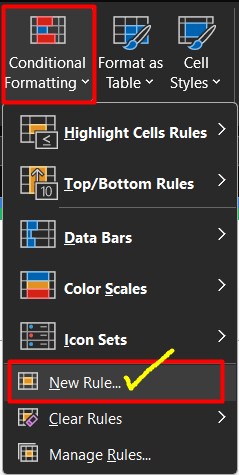
- In New Formatting Rule, choose Use a formula to determine which cells to format.
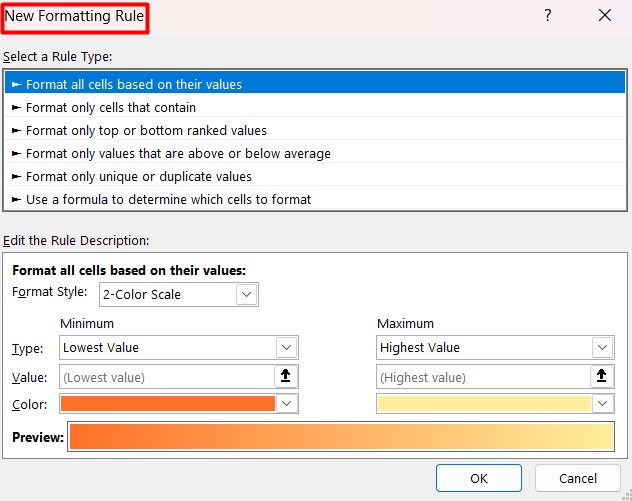
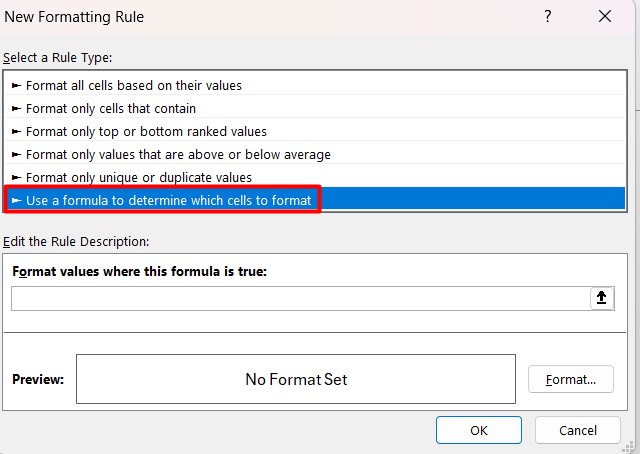
- In the formula box type
=$E8="a". The$locks column E and leaves the row free: that mixed reference is what lets each row look at its own mark.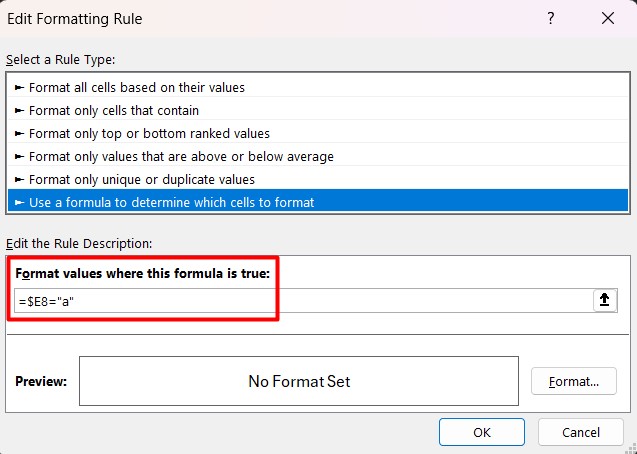
- Click Format → Fill, pick a color, and accept both dialogs.
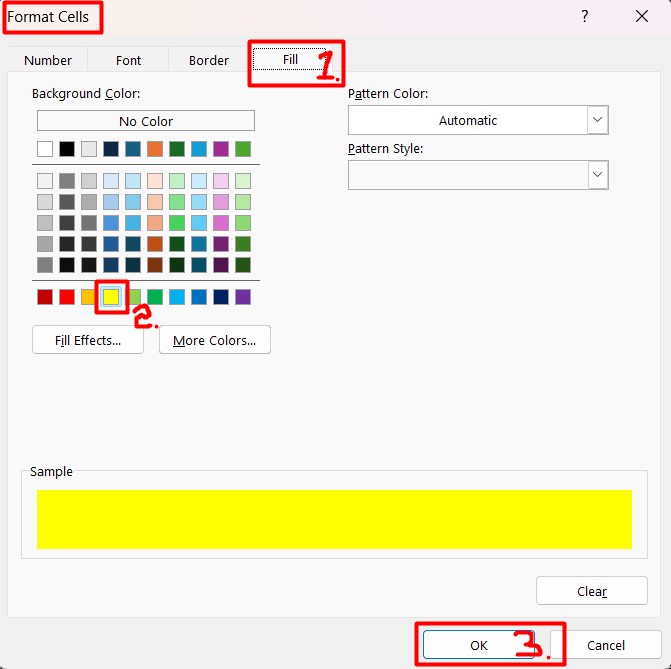
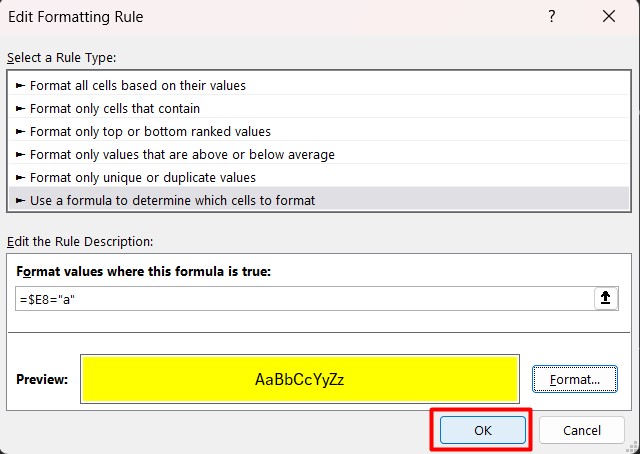
- In the Rules Manager, check that Applies to reads
$A$8:$E$524.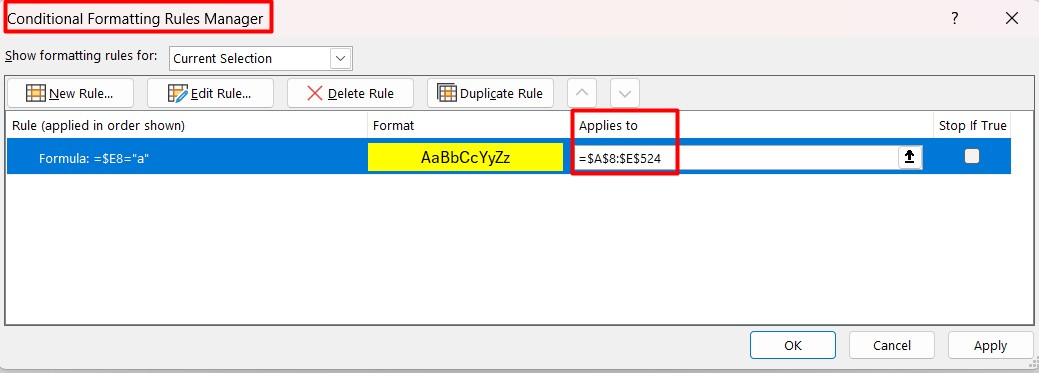
- Type
ain any cell of column E. The row lights up.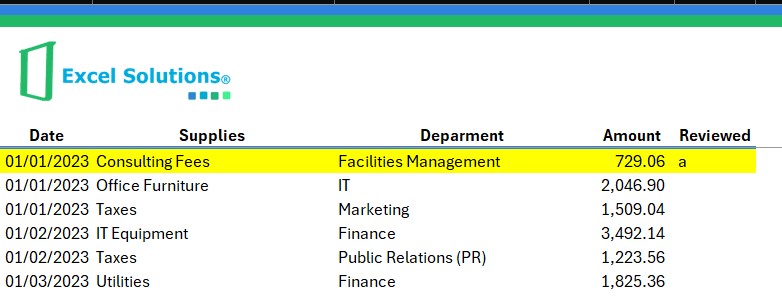
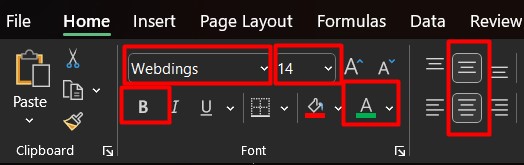
To make the mark look like a tick, select E8:E524 and apply font Webdings, size 14, bold, green, centered: in Webdings the letter a is a check mark.
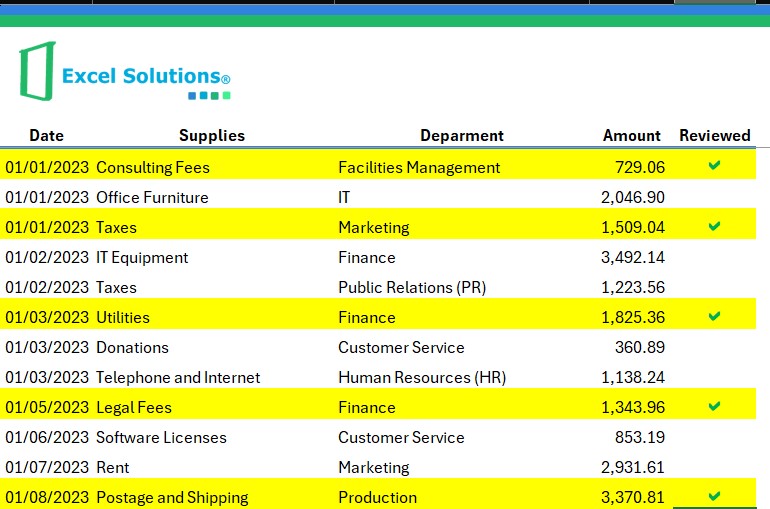
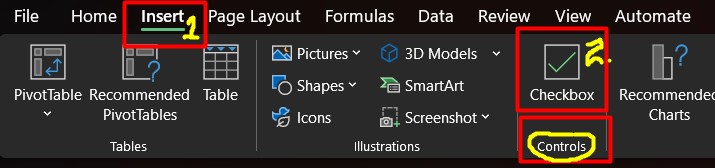
The checkbox version. Microsoft 365 can put a real checkbox in each cell. Select E8:E524 and go to Insert → Checkbox.
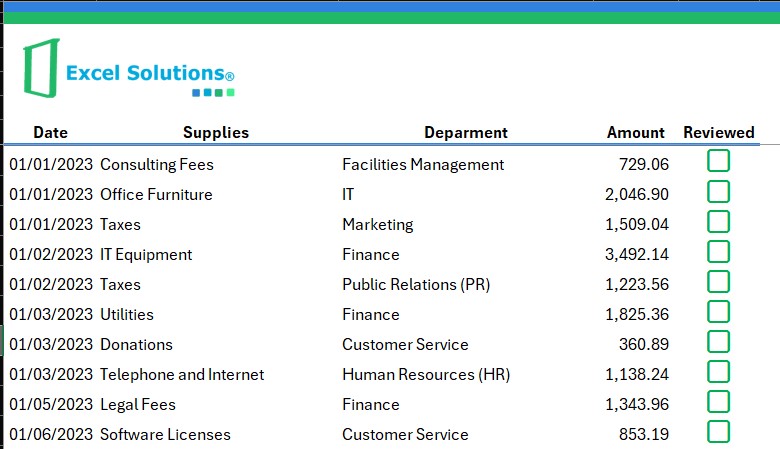
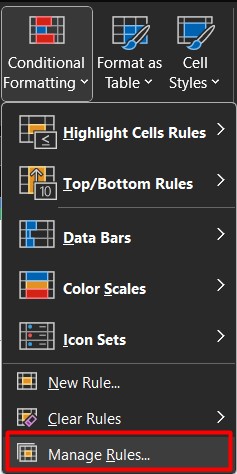
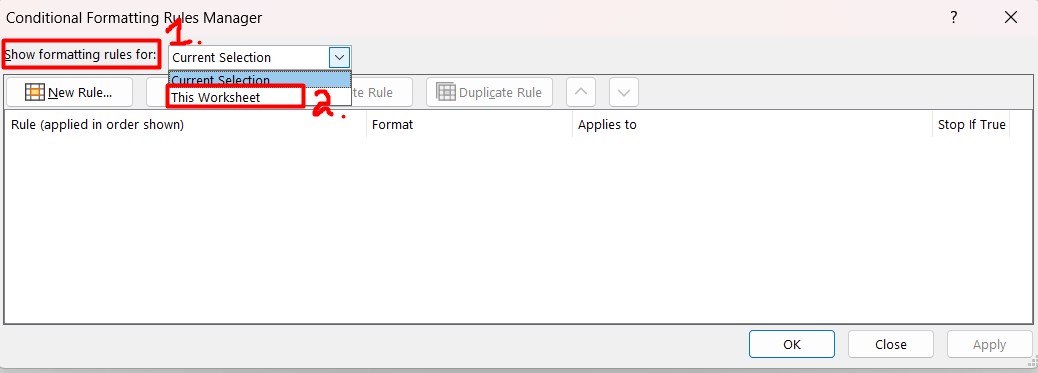
A checkbox stores TRUE or FALSE, so the rule has to test for TRUE instead of "a". Go to Home → Conditional Formatting → Manage Rules, set Show formatting rules for to This Worksheet, and edit the rule.
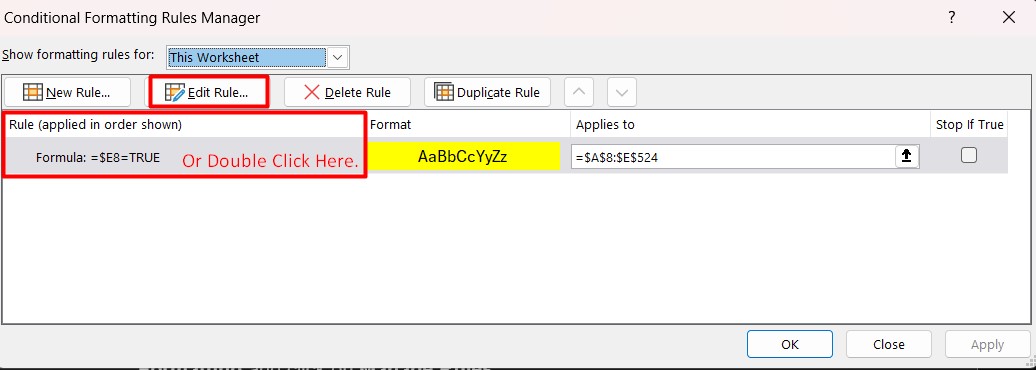
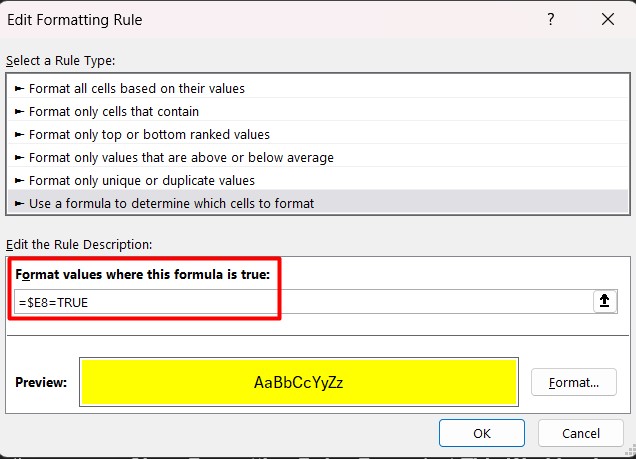
Change the formula to =$E8=TRUE and accept.
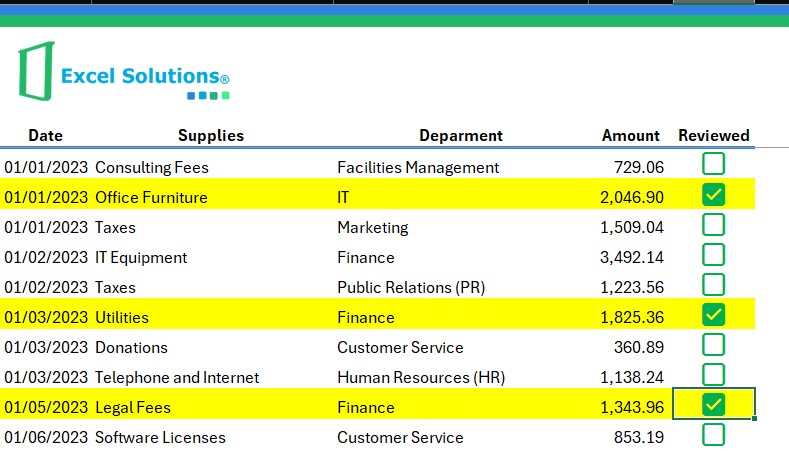
A total that follows the filter
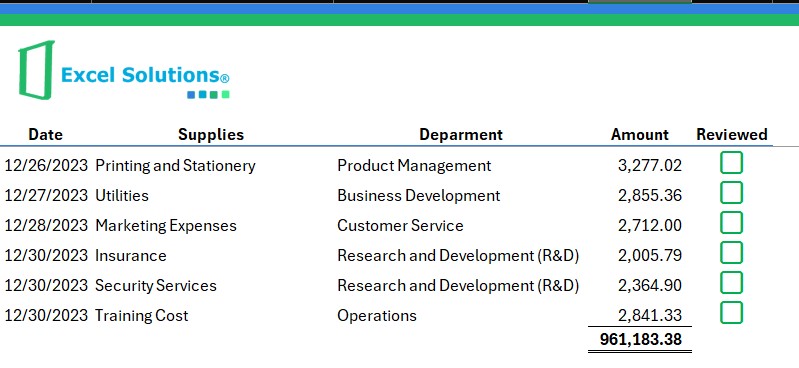
The same register needs totals by department and by supplier. A SUM under the table adds the hidden rows too; SUBTOTAL ignores the ones a filter hides. In the first empty cell under the Amount column (D525):
=SUBTOTAL(9,D8:D524)
The first argument is the function number (9 is SUM) and the second is the range. The formula sits outside its own range on purpose.

With no filter the total is 961,183.83.
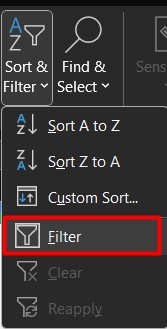
Turn on the filter with CTRL + SHIFT + L, or with Home → Sort & Filter → Filter, or with Data → Filter.


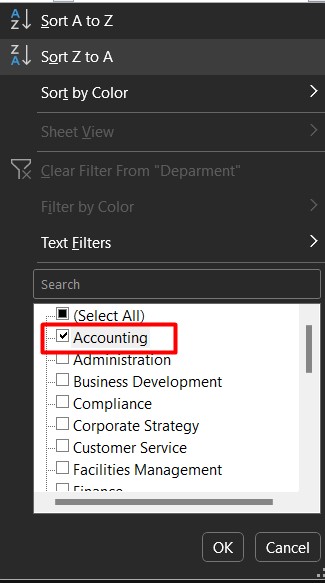
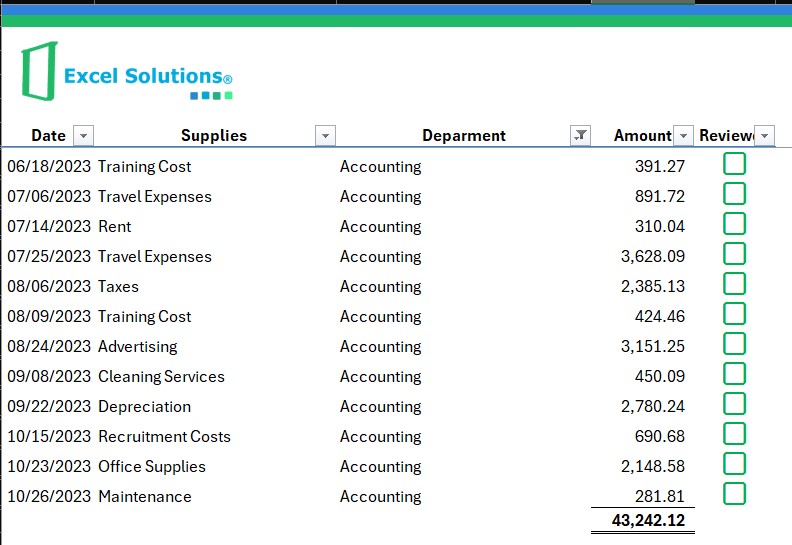
Filter Department to Accounting and the total becomes 43,242.12.
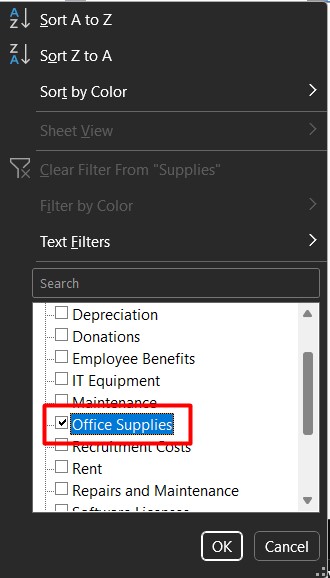
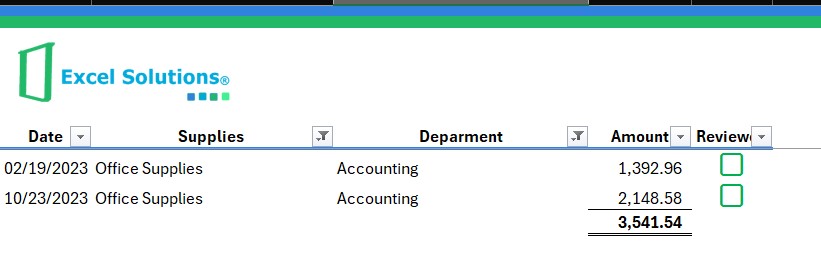
Add a second filter, Supplier = Office Supplies, and it becomes 3,541.54.
SUM, SUBTOTAL(9) and SUBTOTAL(109)
The screenshots above use 9. The 109 variant is the safer default, because the two differ on rows hidden by hand:
| Formula | Rows hidden by a filter | Rows hidden by hand (right click → Hide) | Use it when |
|---|---|---|---|
SUM(D8:D524) |
Counted | Counted | You need the whole column, filter or not |
SUBTOTAL(9,D8:D524) |
Excluded | Counted | Only a filter hides rows |
SUBTOTAL(109,D8:D524) |
Excluded | Excluded | The total must match what is on screen |
The same idea, in a workbook that responds to your filter
The practice workbook has 300 fictitious office expenses with the filter Department = Accounting already applied. Row 7 of the Expenses sheet puts the two formulas side by side: SUM shows 333,497.45 and SUBTOTAL(109) shows 69,555.36, the 53 Accounting rows. Clear the filter and they match; filter by another department and only the second moves.
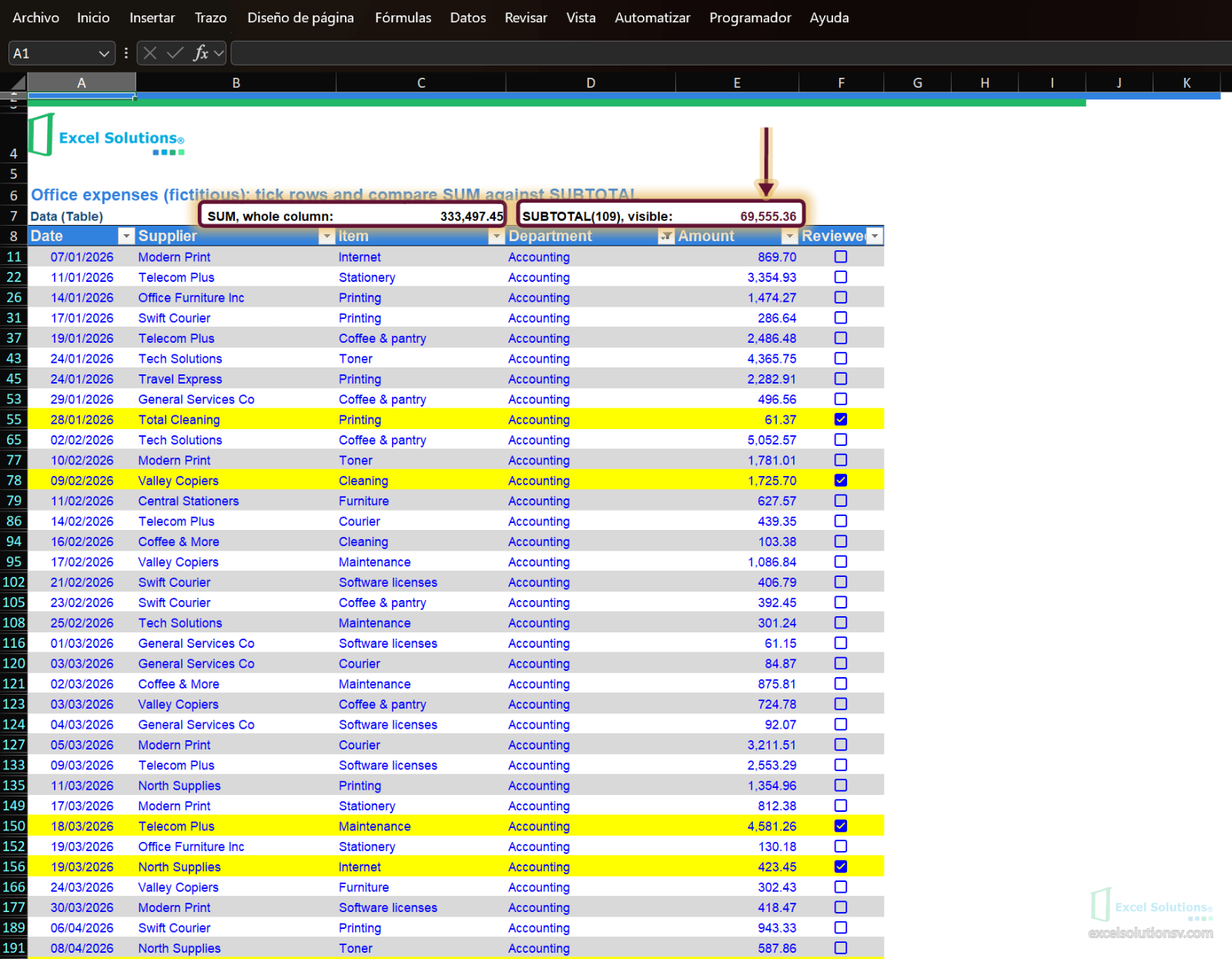
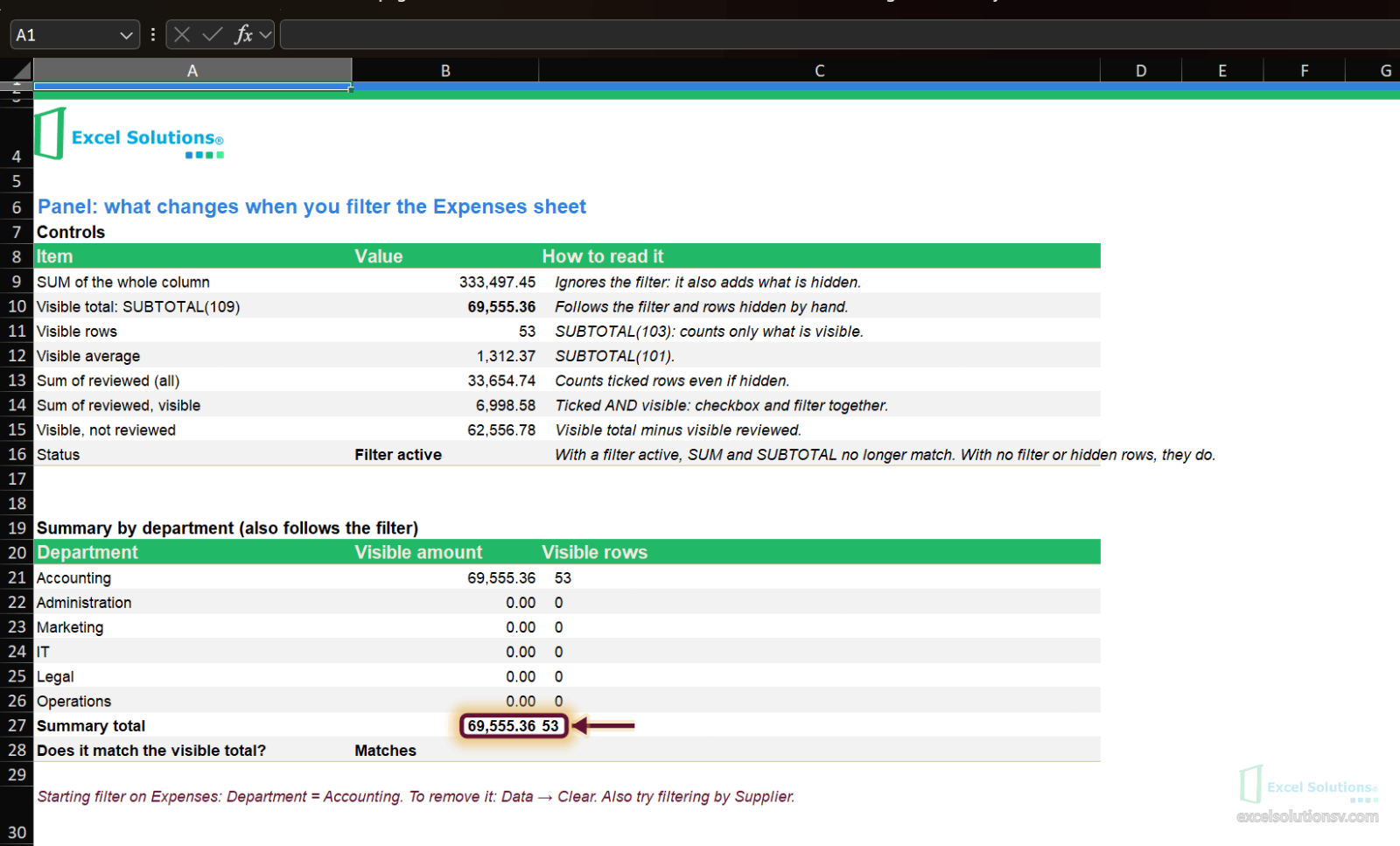
The Panel sheet goes one step further. Ticked rows add up to 33,654.74 across the whole register, but only 6,998.58 of that is visible under the current filter, because the formula checks the checkbox and the filter at the same time:
=SUMPRODUCT(SUBTOTAL(109,OFFSET(Expenses!$E$9,ROW(Expenses!$E$9:$E$308)-ROW(Expenses!$E$9),0,1)),--(Expenses!$F$9:$F$308=TRUE))
OFFSET turns the column into 300 one-cell ranges, SUBTOTAL(109) returns each cell's amount or 0 if its row is hidden, and SUMPRODUCT adds the ones that meet the condition. The department summary uses the same pattern, and its total always equals the visible total.
Where AI fits
A prompt describes a result, and the formula that comes back answers a literal reading of it. Knowing the difference between SUM and SUBTOTAL is what lets you read that formula, test it with a filter, and decide whether it answers the question you meant.
Limits
- Insert → Checkbox needs a recent Microsoft 365. If the button is not on your ribbon, the typed
amethod works in any version. - The rule formula is relative to the top-left cell of Applies to. If the range starts in row 8, the formula refers to
$E8; if you start the range elsewhere, shift the row number. - Ticked rows that are hidden still count in
SUMIF(...,TRUE,...). Combine them withSUBTOTAL(109)as shown above if the total should follow the filter. OFFSETis volatile. The department summary recalculates on every change, which is fine for a few thousand rows and noticeable in much larger files.
Practice workbook
Download the practice workbook: SUBTOTAL and checkboxes, with fictitious data, no sign-up and no email. The screenshots in the first two sections come from the original exercise.
If you want this control built for your firm's expense register or a client's, get in touch.
FUNCIONES A ETIQUETAR → etiquetas del post
SUBTOTAL, SUM, SUMIF, SUMPRODUCT, OFFSET
CAPTURAS A TOMAR → instrucciones para Svei, no se publican
Las 28 capturas existentes son tuyas (Excel en inglés, ejercicio original) y se conservan en su orden; solo cambian los alts. Revisa los alts de las capturas 1, 2, 17, 22 y 24 (cintas y administrador): los redacté desde la miniatura.
Nuevas, salen del libro workpaper-subtotal-checkboxes-demo.xlsx (Excel en inglés, con el filtro de arranque Department = Accounting):
gastos-fila-7-suma-contra-subtotal.png— hoja Expenses, A7:F20 visible; en la fila 7 se ven 333,497.45 y 69,555.36; renglones amarillos (marcados) visibles.panel-resumen-por-departamento.png— hoja Panel, A8:C28 visible; B14 muestra 6,998.58, B21 69,555.36 y B28 Matches.